Click the add a new booking button
When you click this button, it will open a menu that will allow you to enter all the booking details.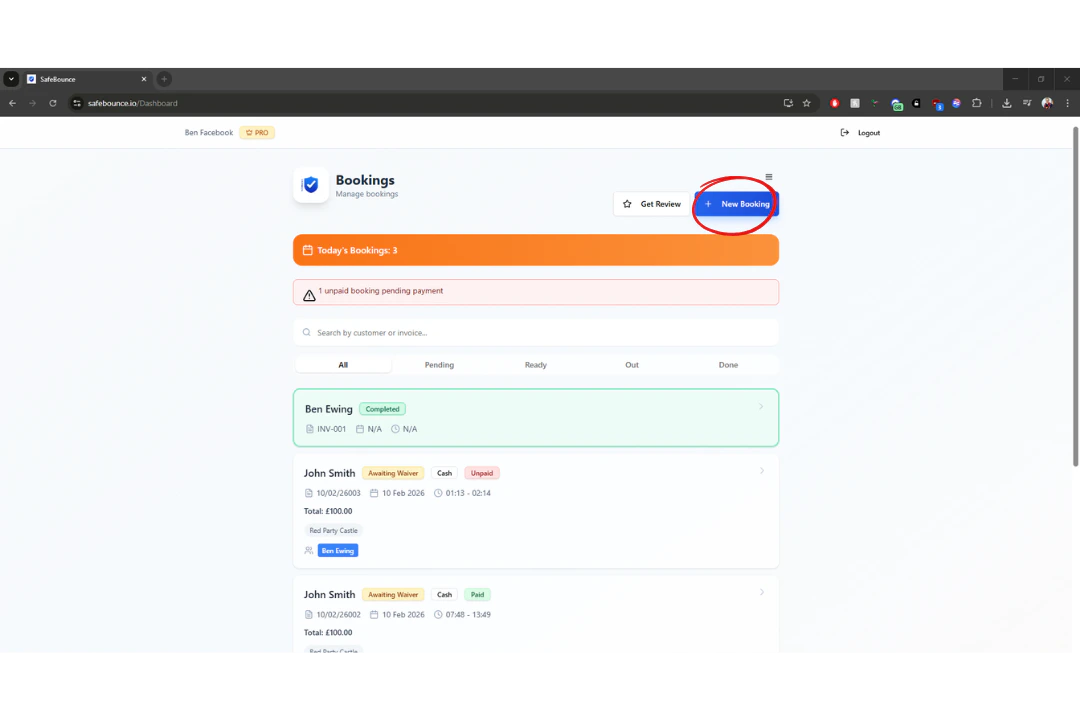
Enter the booking information
This page allows you to enter all the information you need for the booking, basic contact details, event dates & times.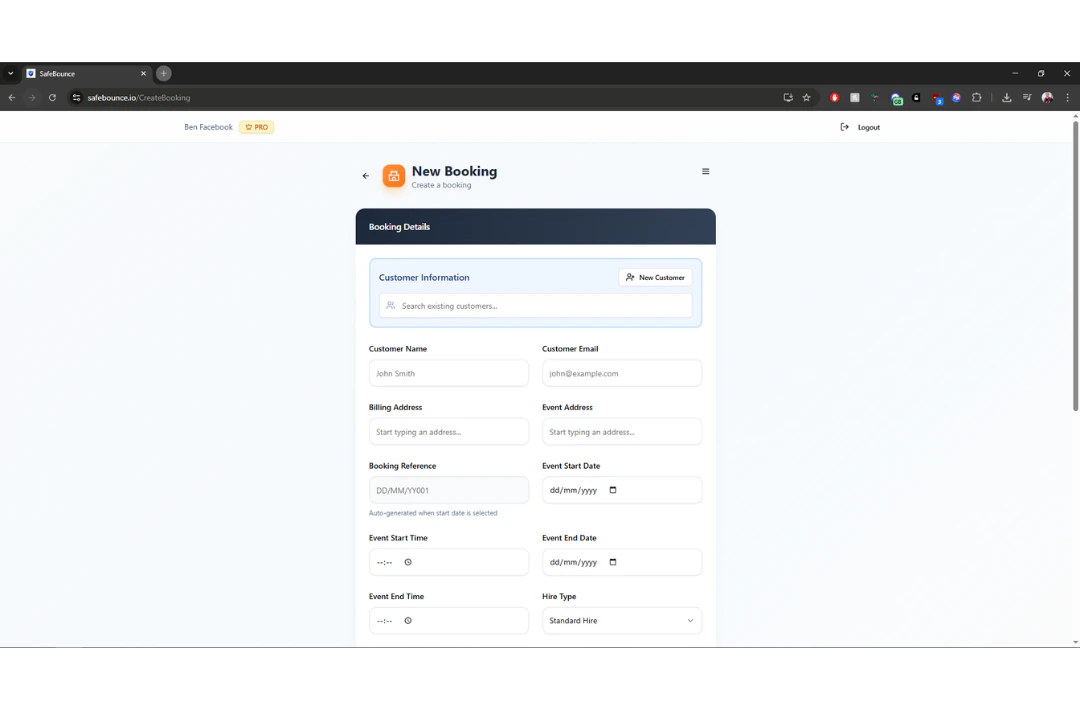
Select the service & assign staff.
You will now see the options to assign a service & staff member. Assigning a staff member is optional.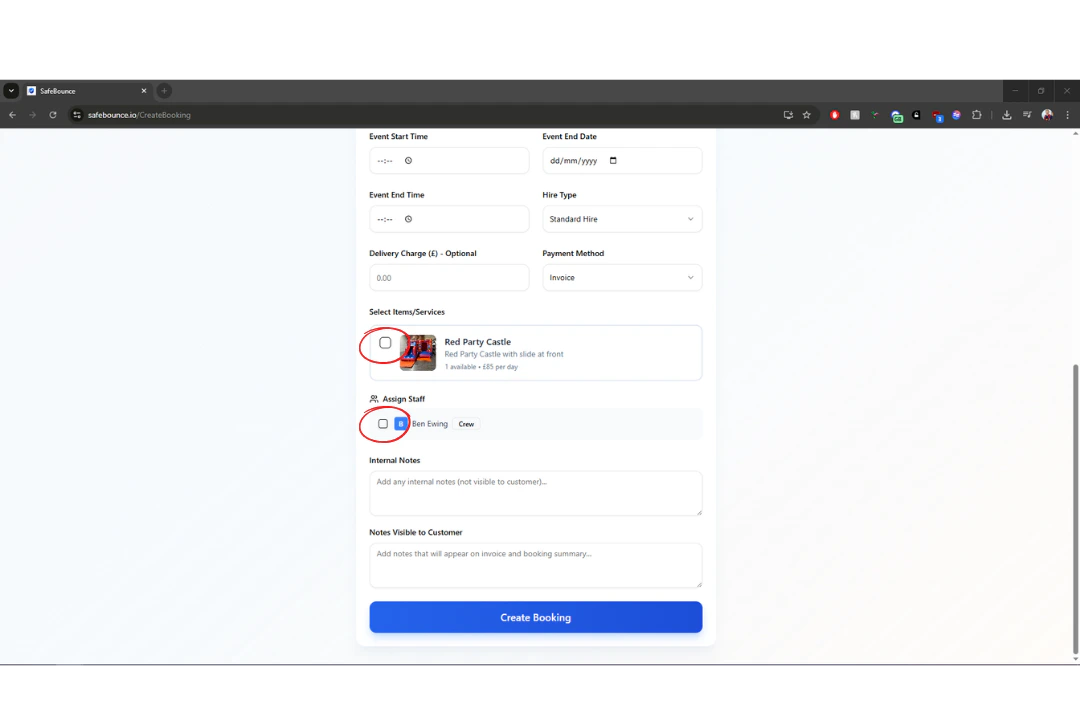
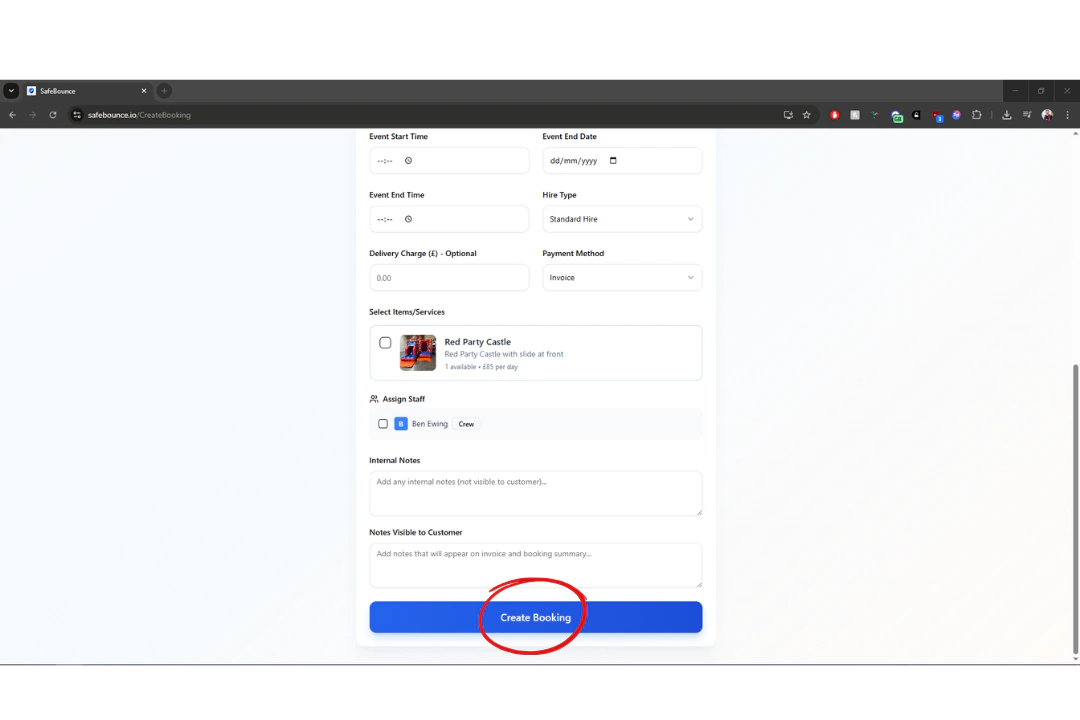
Complete booking
You will now see the option to create any notes for that booking which is optional. Once you have entered all the information for that booking press the “create booking” button and your booking will be complete.